

It’s hard to pick many faults with Apple’s AirPods. They’re the best-selling wireless earbuds currently on the market, and with their excellent sound quality and easy-to-use compatibility with other Apple products, it’s easy to see why.
But not every aspect of the AirPod experience is flawless. For example, many users are experiencing sound quality issues when using their AirPods with their PCs.
In this article, I’ll explore this issue in detail, to try and find the root causes of why your AirPods sound bad on your PC, and most importantly, find out what you can do to fix it.
So if your AirPods sound muffled when you connect them to your Windows laptop or computer, then this is the guide for you!
Table of Contents
Why Your AirPods Sound Bad on PC

The most likely cause for your AirPods sounding bad when you connect them to your Windows PC is rooted in the drivers that Windows uses to process information like volume, sound quality, and audio source.
If you’re using incorrect or outdated drivers, sound quality will suffer, and you may even encounter problems like frequent disconnection and an inability to pair.
A drop in sound quality can also be expected if the audio input is set to be received from your AirPods, as well as the audio output running through them.
While the AirPods’ mic might work fine with your iPhone or Mac, Windows is a whole different operating system, and it lacks the built-in compatibility that you get when using Apple products together.
How to Fix Bad Sound Quality When Using AirPods with PC
But, regardless of the cause of the issue, the most important thing is that you know how to fix it, so you can use your AirPods in peace and enjoy the (normally) top-level audio quality that they’re capable of.
Let’s take a look at some of the things you can do to prevent this issue from occurring and fix it straight away if it does.
Change Sound Settings on Windows

When your AirPods are connected, you can right-click on the speaker icon in the bottom right-hand corner of your Windows desktop to access Sound Settings.
Scrolling down to the Input section of Sound Settings, you might see that the microphone selected is on your AirPods.
This is the cause of this issue most of the time! While your AirPods function as both a speaker and a microphone when you use them with your Apple device, something in the compatibility settings with Windows’s drivers can drastically reduce audio quality when your AirPods mic is also active.
Select your AirPods under the input heading and you’ll be taken to the next screen, with more options to customize your audio input.
You’ll notice that the Format will probably be set to ‘1 channel 16-bit telephone quality,’ which probably won’t inspire much confidence. If you can, select CD quality instead. This may be enough to fix the problem.

What you want to do instead is click the button above that says Don’t Allow. This will prevent Windows from using your AirPods mic as the default microphone when you connect them to your PC.
If you have another mic, like your PC’s in-built one, or an external mic, you can also select that to mitigate the sound quality issue, while still being able to use your AirPods for virtual meetings and video calls.
Update Bluetooth Adapter Drivers
If you’ve tried the above fix, but your AirPods still sound muffled on your PC, then it might be because your drivers are out of date. If this is the case, then simply changing the microphone input settings probably won’t do much at all.
If your Bluetooth drivers are outdated, you’ll likely experience other problems as well. Failure to connect, or frequent disconnections if you do manage to pair are to be expected. And on top of that, the sound quality will likely be poor.
To update your drivers, right-click on Start and select Device Manager. From here, you can expand the Audio Inputs and Outputs section to see your devices. If your AirPods are connected, you should see them there.
Right-click your AirPods and select Update Driver > Search Automatically for Drivers.
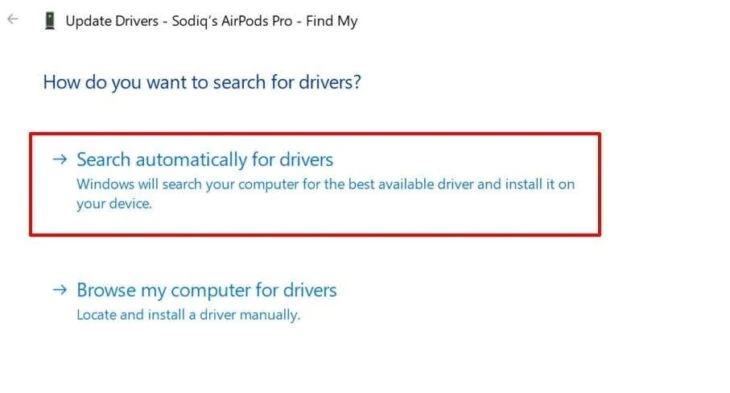
Windows will now search for more up-to-date drivers, and, if there are any available, download and install them. You may need to restart your PC to finish the installation.
When you’re up and running again, open Device Manager once more but this time select Sound, Video and Game Controllers. Your AirPods should appear again in this list. Go ahead and follow the same steps as above:
Right-click on your AirPods and select Update Driver > Search Automatically for Drivers. Windows will download and install any available drivers.
Hopefully, this will improve the audio quality of your AirPods when you use them with your PC! If it doesn’t, it may be that the Device Manager did not find or install the correct or most recent drivers. To make sure you’re getting the latest versions available, it’s always best to head to your device manufacturer’s site and download the correct drivers directly from there.
If you don’t know what you’re looking for, this can be a bit confusing, but thankfully most manufacturers will have a tool to detect exactly which device you have, and which drivers need to be updated.
Final Thoughts
It can be very frustrating when all your expensive tech doesn’t work well together, especially when it’s made by two of the biggest names on the market – Apple and Windows.
But thankfully, simply disabling your AirPods’s mic should make a world of difference for almost all users who come up against this problem.
Of course, if you find your AirPods have bad sound quality even when not paired with your PC, you might want to check out these articles detailing fixes for AirPods that sound muffled or suffer from a buzzing or static sound.
In some cases, you may just need to clean your AirPods or charge them. Good luck!
