
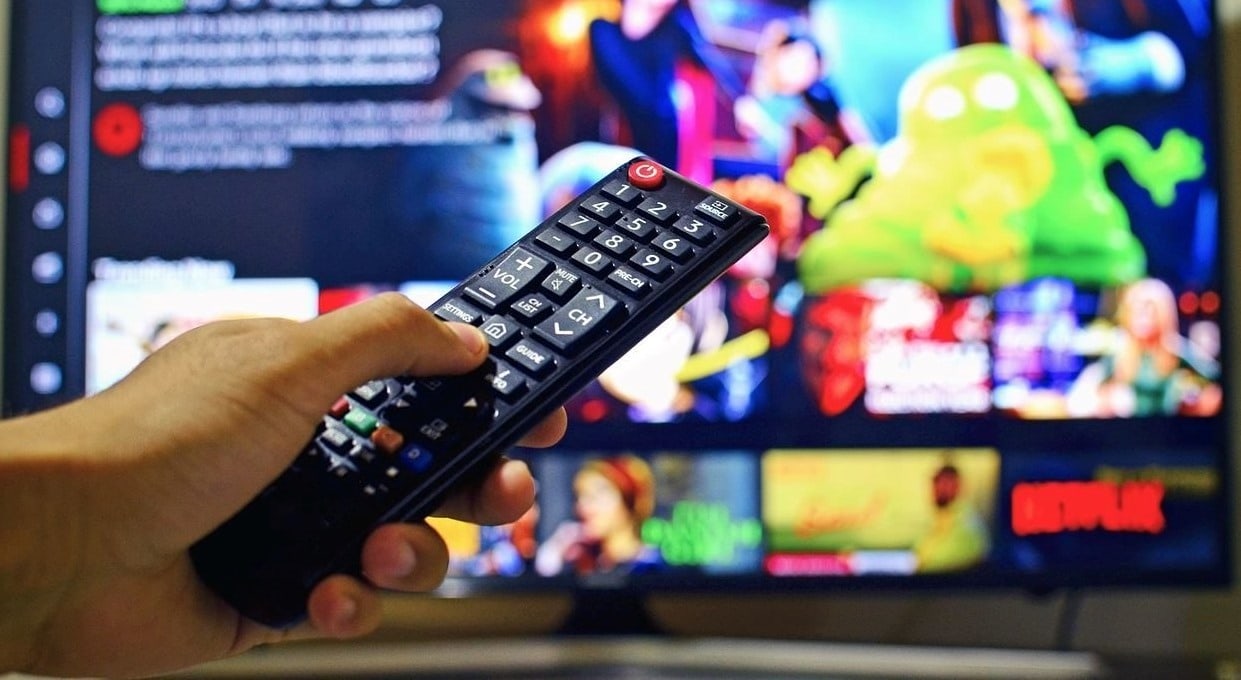
A frustrating experience for some Samsung TV owners is when their Samsung Smart TV keeps turning on and off. Sometimes this happens every several seconds, sometimes the TV will remain on for only a few mins, and sometimes it seems to be completely random.
Believe it or not, there is more than one reason this could be happening to your TV. So in order to solve the issue, it’s best to go through all of the solutions and check every potential source of the problem.
So if you are asking “Why does my Samsung TV keep turning off?”, then I will walk you through all the possible fixes to keep your TV on for good, starting with the most simple.
Table of Contents
Simple Solutions
These steps are not very involved and require minimal effort, so there’s almost no chance of making your issue worse.
Soft Reset the TV

This solution seems almost too simple to work but most of the time, it’s actually all that is needed to solve your on/off issue. A soft reset helps the TV completely power down before being turned back on.
All you have to do is unplug your TV from the wall or power source, wait for a minimum of 30 seconds, and then plug it back in. If it doesn’t eradicate the problem completely, oftentimes it is enough to keep your TV powered on longer so you can go to the settings menu (something you may need to try later).
Make Sure It’s Not the Remote
If you have an aftermarket remote that didn’t come with your TV, or if the remote you have is a little beat up, that may be the source of all your problems. One or two buttons on a remote that are permanently depressed (or send out the signal that they are) could be enough to essentially confuse your Samsung TV and make it turn on and off randomly.
Amazon fire sticks and remotes have been known to brick some Samsung TV’s which can throw them into a vicious on/off cycle.. This can be due to an incorrect setting on the remote, using the wrong HDMI port, or attempting to use an Amazon remote on an older model Samsung Smart TV.
If you’re using an Amazon remote or a fire stick and your Samsung TV is turning off and on repeatedly, try unplugging the HDMI receiver corresponding to the remote (that’ll usually be your fire stick itself) and using the remote that came with your TV.
If you aren’t using an Amazon remote or other third-party remote and you notice no obvious defects, then try just changing the batteries. Yes, sometimes it’s really just that easy!
Check Your Power Source

A regular outlet in your home should provide enough power to your Samsung TV, but this can be hampered if there are other devices plugged into it. If you are plugging your TV into a power strip or a splitter with multiple other devices plugged in, there may not be enough juice to keep your TV on while these other devices are in the way.
Also, if you have external devices connected to your Samsung TV itself, that could also be interfering with the amount of power it is receiving, particularly game consoles and surround sound units.
Unplug your TV from the power source (this is also you performing a soft reset again) and remove all external devices connected to your TV. Wait 30 seconds, and plug only your TV in directly to the wall outlet. If this solves your issue, then all you have to do is determine how to run your other devices.
One or two external devices should not affect the power much but try not to exceed that amount.
Advanced Solutions
These solutions are a bit more in-depth and require you to interact with your TV menu. If your Samsung TV keeps turning off every 5 seconds, even after a soft reset, then you will only be able to use the first and last solutions as some options require you to access the “Settings” menu.
Factory Reset Your TV

This will reset all settings on your TV back to what they were when it first came out of the box. There are several different ways to force a factory reset on a Samsung TV. Be prepared, any apps, music, access pins, or photos that are stored on your TV will be lost in this process.
From the “Settings” menu: If your TV can stay on longer than a minute, you’ll be able to factory reset it straight from the settings menu. Press either the “Home” or “Menu” button on your remote, navigate to settings, select “General”, then select “Reset”. It will prompt you to enter your PIN number.
If you never set a PIN number, enter 0000. After entering the PIN, select “OK” and you should see your TV powered down. It will take several minutes for a hard reset like this to be complete, but the TV should automatically turn back on once it is finished.
With your Samsung remote: If your TV doesn’t stay on long enough for you to complete the steps from the “Settings” menu, you can use your remote to factory reset it. Note that this will only work with the remote that came with the TV. Third-party remotes won’t be able to perform this action for you.
All you need to do is aim the remote and the LED sensor at the front of the TV and hold the “Power” button for 60 seconds. You should see the TV turn off, cycle through the factory reset, and then restart itself.
With only the TV: This is another option for if your TV doesn’t stay on long enough to navigate to “Settings” or if you’re unsure if the remote reset worked or not.
With the TV plugged in, locate the “Power” button and the “Volume Down” button on either the side panel or the back. Press and hold both of these buttons for 60 seconds. While you are still holding them, you should see the TV power off. Once it does this you can release the buttons and allow your TV to finish the reset cycle.
Turn Off Anynet+
Anynet+ is a feature on Samsung TVs that connects all external devices to one single HDMI port, and that HDMI port can be controlled by a single remote control. This is similar to the concept of having one “universal remote” that can control your surround sound, TV, DVD player, game system, and microwave (not really your microwave, but you get the point).
The issue with Anynet+ is that in some instances, the TV will power off if any of the external devices connected are powered off as well. It’s almost like the TV doesn’t know which device to set as its main device, therefore it simply shuts down.
Even if you have no devices connected, if the Anynet+ setting is on, it can still cause your Samsung TV to turn off for no reason. To fix this, navigate to the “Settings” menu, go to “External Device Manager”, and make sure the option “Anynet+ CEC” is set to off.
Check for Software Updates

Even if you just got your smart TV a few months ago, there still may be a new software update available. These updates help to improve performance and fix common bugs apparent in old versions of the software.
Most of the time, the update is automatic so the user doesn’t notice a thing. But every once in a while, you have to manually check for the update in the event it didn’t auto-install.
To do this, go to either “Menu” or “Settings” (depending on your model) and click the “Support” or “Software” tab. You should see an option to check for software updates. After that, your TV will let you know if any update is available for download. Click “Yes” or “Install” if it prompts you to update your TV software.
Call a Technician
If you’ve run through every single option on this list, and your TV is still randomly turning on and off, then unfortunately the only solution is to get a professional to look at it. While it can be annoying to wait for a technician, it sometimes is the most cost-effective option.
If your TV is still under warranty, there should be little to no cost to you to call Samsung and request a technician to come examine the issue. If you don’t have a warranty, you may have to pay a decent amount of money out of pocket.
There is the option to purchase another warranty for your TV if you find yourself at this step, but please be advised that you should only purchase the warranty directly through Samsung. Do not use a third part warranty company.
It’s also not advised for you to attempt to dismantle the TV and mess around with the power board on your own. Not only can this void any current or future warranty, but it may permanently ruin your TV.
