
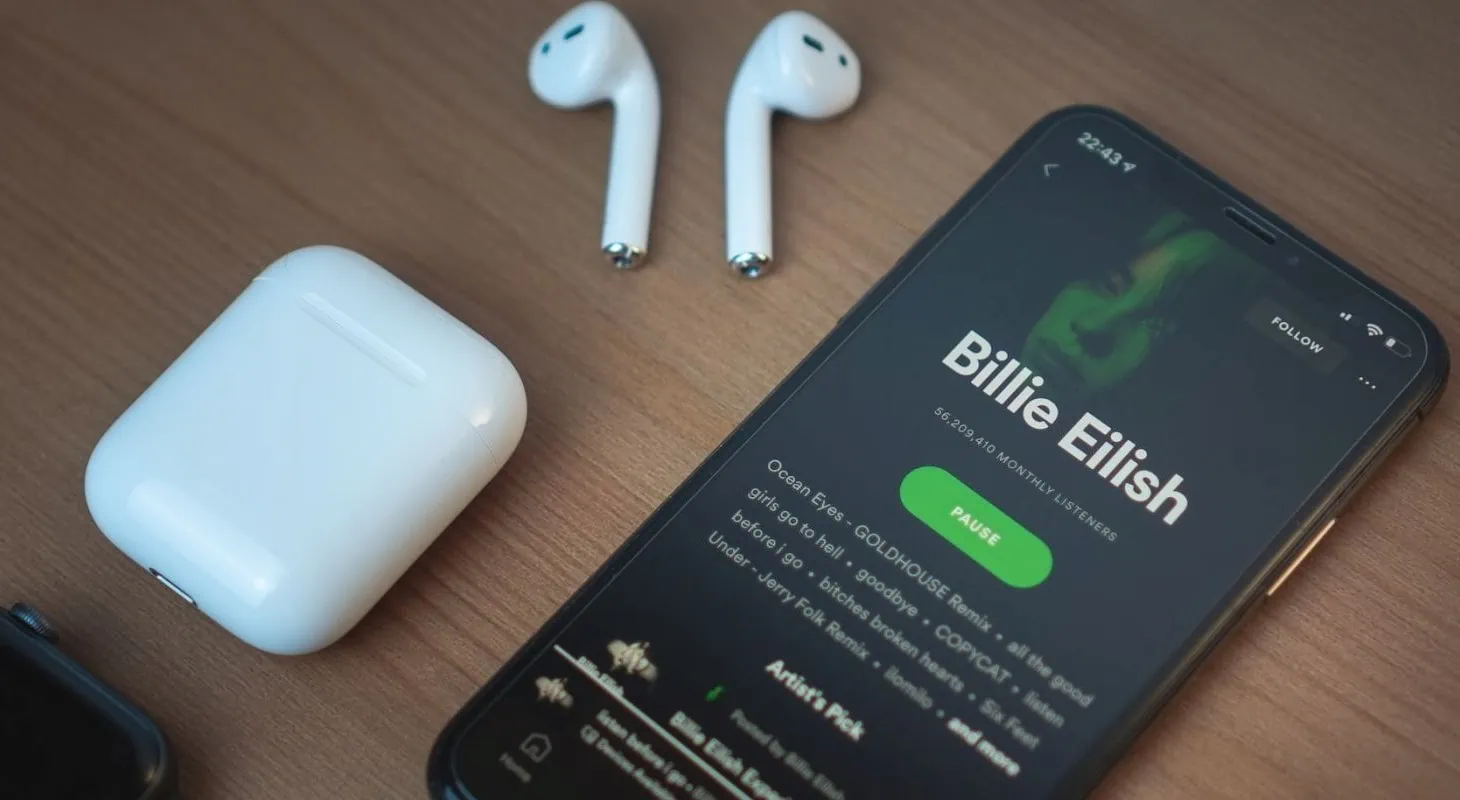
AirPods are some of the most popular earbuds on the market – and for good reason. They’re sturdy, have great sound quality, and look stylish. In fact, owning them has become as much of a fashion statement as it is about listening to music – despite the price tag!
But, like all electronic products, they’re not without their issues.
Sometimes, your AirPods will be connected to your phone via Bluetooth, but the sound will still play out of your phone. Obviously, that’s not ideal. So if your AirPods are connected but not working, and the sound is coming from your phone speakers, you might be wondering what causes this issue, and what you can do to resolve it.
Let’s take a look!
Table of Contents
Why Your AirPods are Playing through Your Phone

The most common answer to this query is usually the simplest. Basically, your AirPods are connected to your iPhone via Bluetooth, but your audio playback is set to come out of a different output.
This can be resolved by simply opening the Control Center and tapping the AirPlay icon, then selecting your AirPods. This should change where the sound is playing.
Alternatively, it may be due to outdated software or firmware that is running on your iPhone and/or AirPods. Updating iOS should fix this problem.
Finally, it may be caused by the battery status of your AirPods. When battery levels get low on electronic devices, it can cause them to act strange, and their various features will cease to function as intended. Bluetooth connectivity, for example, will weaken when battery life is low.
How to Fix Connected AirPods that aren’t Working
Let’s take a look at some of the easiest and fastest ways to get your AirPods working perfectly again.
If you tried the first mini-fix in the intro (opening the control center and changing output settings in AirPlay), but you’re still hearing sound from your iPhone speakers when your AirPods are connected, try these fixes next.
Reset Your AirPods

We’ve covered this a thousand times in regard to other common issues with AirPods, but let’s go through the steps again.
- Place your AirPods in their charging case and close the lid
- Wait for 30 seconds
- Remove your AirPods from the case and put them in your ears
- Open Settings > Bluetooth
- If your AirPods are in the list of connected Bluetooth devices, tap the Information (i) and click ‘Forget This Device’, and confirm
- Place your AirPods back in the case with the lid open
- Press and hold the Setup button on the back of the case for 15 seconds
- The status light should flash amber, then white
- Keep your AirPods in their case and keep the lid open, then place them close to your device
- Follow the onscreen popup to reconnect your AirPods
Now your AirPods have been reset, try playing some music. Hopefully, it will play through your AirPods and not your phone speakers now!
This fix usually works the first time for this issue, but if it didn’t here are some other steps you can try.
Update iOS and Firmware
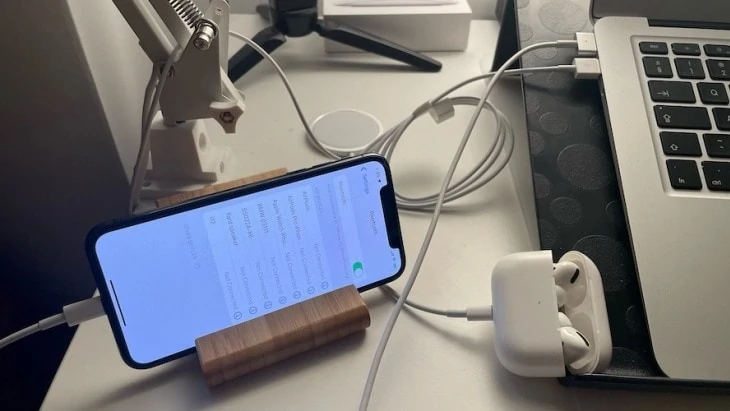
This is something you should be doing as soon as that annoying software update message appears on your iPhone! I know I’m just as bad as I’m sure you are for putting it off, but it really does help with the day-to-day functionality of your iPhone and all associated devices – including AirPods.
Most software updates will include firmware updates for your AirPods too, so if you don’t keep everything as up to date as possible, you’re much more likely to run into issues like this.
To update iOS, simple open Settings > General > Software Update.
If there is an update available, you’ll usually have two options. Download and Install, or Install Now.
When it comes to your AirPods firmware, that is usually taken care of automatically when your AirPods are charging and within Bluetooth range of your iOS device while it’s connected to WiFi.
If you want to check which version of firmware you’re currently running to find out if you’re up to date, open Settings > Bluetooth, then tap the Information (i) next to your AirPods.
Scroll down to the ‘About’ section to see which version of firmware you’re currently running.
Improve Bluetooth Connection
These tips here are more general to help you ensure that you’ve got the best possible connection between your iPhone and your AirPods at all times. Although this is unlikely to be the cause behind this issue if it happens a lot, it’s worth ruling these things out.
Proximity and Obstructions
If you’re too far away from your device, your AirPods might become disconnected, resulting in sound playing through your phone speakers. The maximum Bluetooth range for AirPods is approximately 50 feet (15 meters).
Battery Level
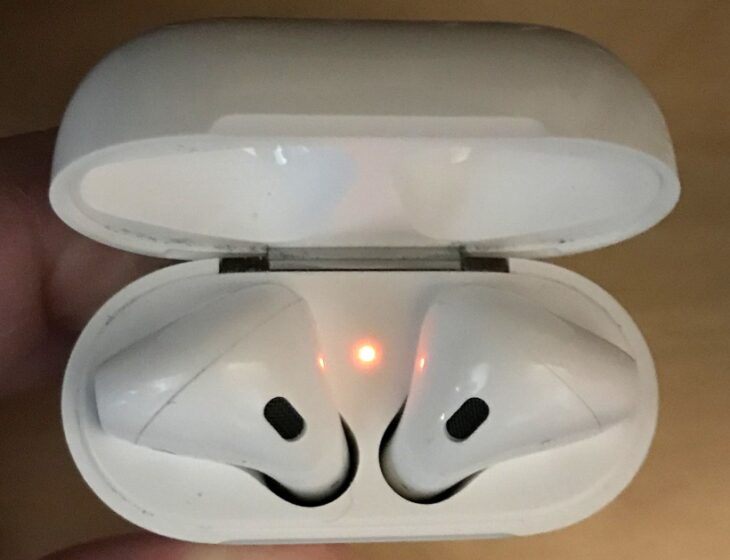 Battery life can have a massive impact on how your devices function, with things lagging and freezing when you’re on your last few percent.
AirPods are no different – if their charge is insufficient, the Bluetooth connection will weaken, and problems may arise. Keep your case fully charged and with you at all times to prevent this – and of course to extend your listening time!
Interference
Bluetooth operates on a 2.4 GHz frequency, the same as WiFi. This frequency is great for connectivity as it is accessible worldwide and offers a good balance between sound quality and range.
But it can get busy! If you’re in an area where lots of people are using WiFi and Bluetooth, you might find your connectivity dips in and out as the wavelength is overcrowded.
There’s not much you can do about this apart from moving to a less busy area, but that might not always be possible, so it’s just something to bear in mind when this issue strikes.
Final Thoughts
Compared to some of the other issues AirPods can have, this one is relatively minor. It should be an easy enough fix, and most of the time, it’s a simple case of changing the output via AirPlay.
If that doesn’t work, go through the typical steps of resetting and re-pairing your AirPods, and don’t forget to update your iOS software!
Good luck!
